
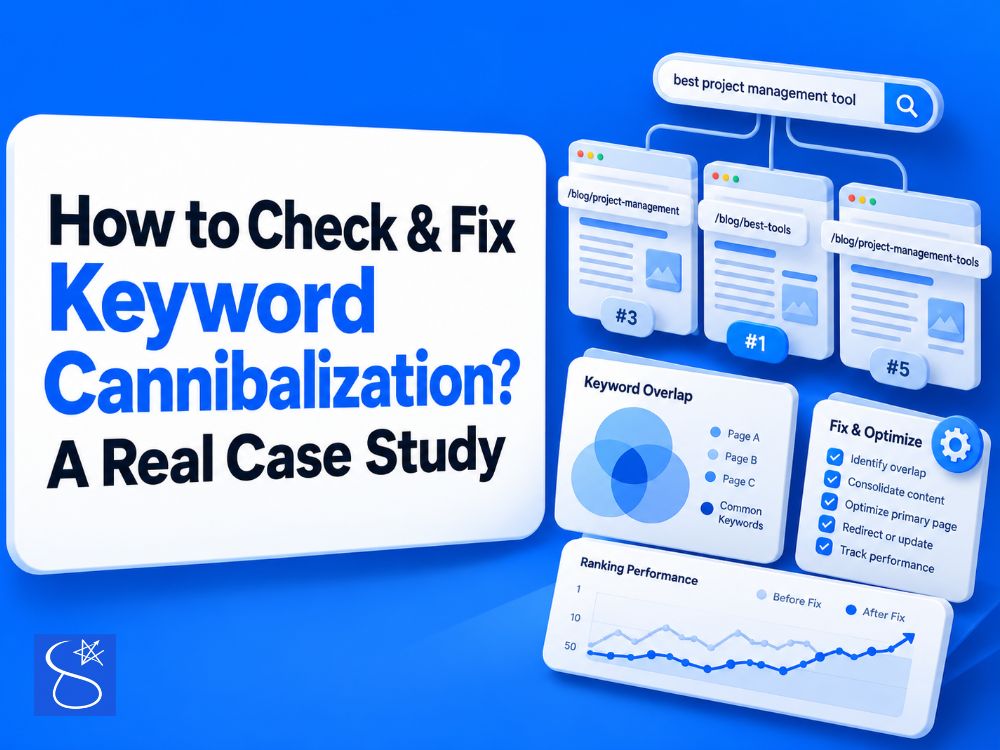
Two of your pages are ranking for the same keyword. So what do most people do? They call it keyword cannibalization, delete one page, and redirect it to the other. Sounds logical, right? But this is exactly where many websites make a costly mistake.
Two pages showing up for one keyword doesn’t always mean cannibalization. The real cause could be a thin page, weak internal links, or a long page that goes off topic. Only real duplicates need a merge.
If the problem is something else and you add a 301 redirect anyway, you may lose a page that never needed to go. And the real cause stays on your site.
So the real question isn’t “do I have cannibalization?” It’s “what is actually causing this?” In this article, I’ll show you how to check keyword cannibalization step by step. You’ll get two quick checks, a 4-step Google Search Console method, and the right fix for each cause. All the examples come from my own gardening site. Read this before you remove, merge, or redirect anything.
What a Cannibalization Alert Really Tells You
How did you find out your pages might have this problem? Maybe an SEO tool flagged it in a site audit. Maybe a client asked you to check their website. Or maybe you searched your own keyword and saw two of your URLs together.
However you got here, remember this: that alert is a signal, not a diagnosis. A tool can tell you that two pages share a keyword. It can’t tell you why.
Even Google doesn’t see this as a problem by default. In September 2025, a site owner asked Google’s John Mueller how to avoid cannibalization, and Search Engine Journal reported his answer. Mueller said three pages in one search result “doesn’t seem problematic to me” just because it is more than one. His advice was simple: look at the details, know your site, and know your users.
The same report, written by Roger Montti, listed five real reasons why pages on the same topic fail to rank:
- The page is too long and loses focus.
- The page has off-topic passages.
- The page has too few internal links.
- The page is thin.
- The page is almost a duplicate of another page.
Only the last one truly calls for removing or merging a page. The other four need better content or better links. That’s why you must find the reason first.
Two Quick Checks Before You Open Search Console
These two checks are fast, and they give you a rough first signal. But neither one can tell you the reason. So use them only to decide which pages need a closer look.
If both checks show nothing for a keyword, you can skip the deeper steps for it.
Check 1: The site: Search
Search site:yourdomain.com “keyword” in Google and look at the results. You’ll see pages from your site that are indexed and mention that term. If several very similar pages appear, note down their URLs.
But remember what this check can’t do. It doesn’t show rankings or which page Google prefers. It only tells you these pages exist in Google’s index.
Check 2: A Keyword Cannibalization Checker Tool
Tools like Semrush and Ahrefs can flag keywords where more than one of your pages ranks. Semrush has a full report for this, and Ahrefs has a simple filter. I cover both later in this article.
Again, these tools show you that it’s happening, not why. They also use their own tracking data, while Search Console shows what Google actually showed to people. So treat a tool alert as a reason to check, nothing more.
How to Check Keyword Cannibalization in Google Search Console?
Why Search Console? Because the data comes directly from Google. As Mueller said in the same answer, it only shows pages that Google actually displayed to searchers. Nothing here is a guess.
The method has four steps. First you check by query, then by page, then you compare the whole cluster, and at the end you read the pages yourself.
Before You Start: Build Your Shortlist
On a site with hundreds of pages, you can’t check every URL. You need a shortlist of pages worth checking. You have two options.
You already know where to look. The risk often hides in template pages. These are pages with the same structure where only one thing changes, like a city name, a product type, or a year. My Texas planting zone pages are a good example.
You don’t know where to look. Then run a full site crawl with a tool like Semrush or Screaming Frog. Use the report to list pages with similar titles and headings.
Once you have your list of URLs, you’re ready to start. [Image 1.1: your list of pages]
Step 1: Filter by Query and Open the Pages Tab
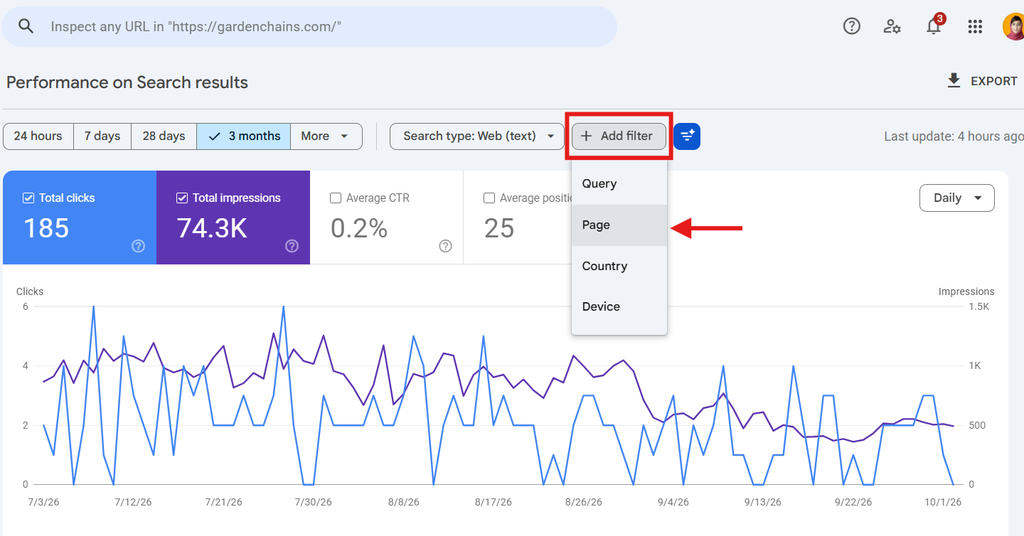
Open the Performance report and click “+ Add filter.” and then “Page” as shown in the following image.
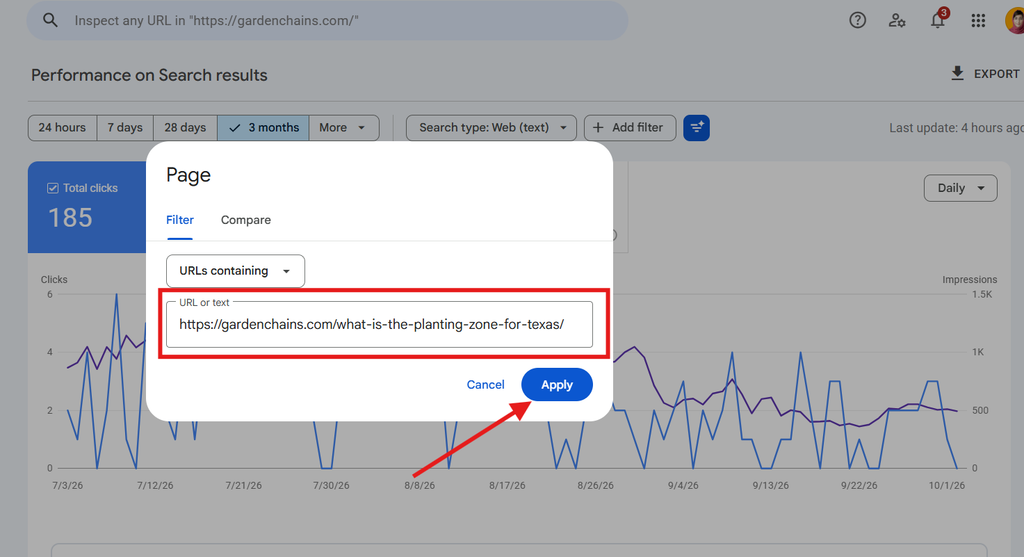
Choose Pages from your list and paste it and apply as shown in the following image.
Note the top 3 to 5 queries for that page.
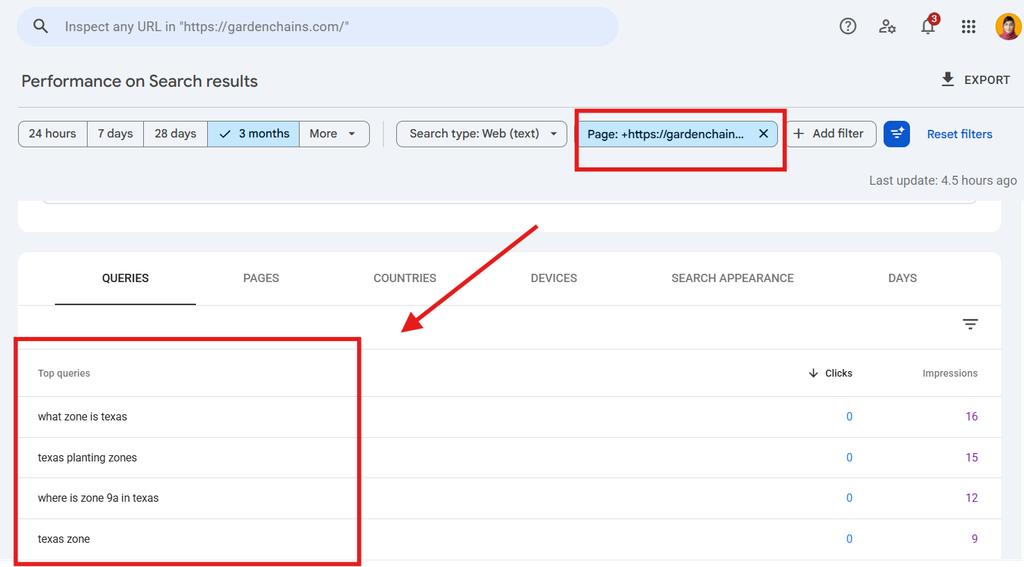
Remove the page filter and add a Queries filter with one query.

Open the Pages tab and turn on Average position.
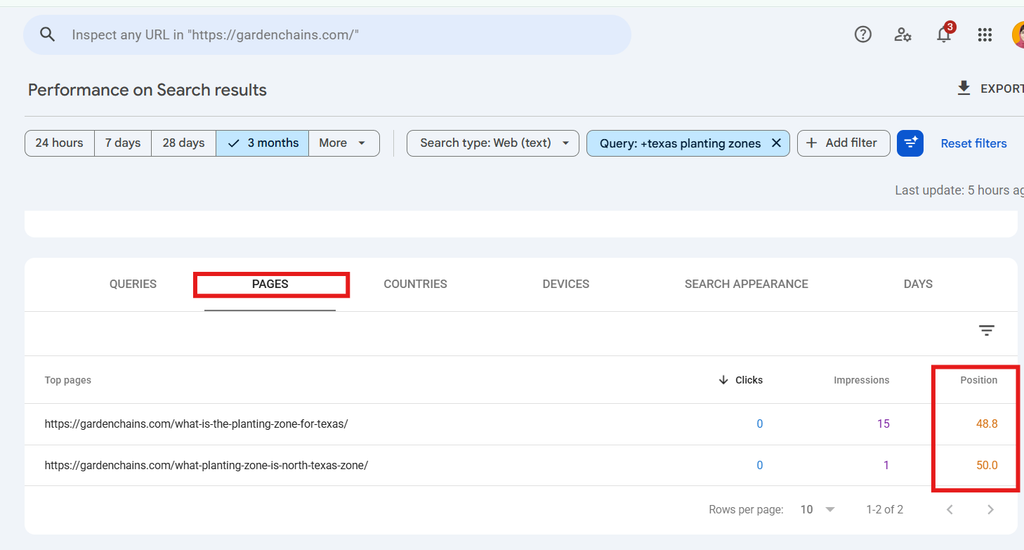
Do other pages from your site show up for the same query? Then compare them on both impressions and position.
Why the Pages Tab Shows What the Queries Tab Hides
Here is something most people miss. Search Console counts data in two ways. According to Google’s Performance report help page, the Queries tab counts your whole site as one. So if two of your pages appear for one search, you see one impression and only the higher position.
The Pages tab counts each URL on its own. Every page gets its own impressions and its own position. That’s why you can only see the overlap after you open the Pages tab.
Example 1: The Pillar Page Is Winning
My URL was gardenchains.com/what-is-the-planting-zone-for-texas/ and the query was “what zone is texas.” After I applied the query filter, this is what I saw:
| Top pages | Clicks | Impressions |
| /what-is-the-planting-zone-for-texas/ | 0 | 43 |
| /what-planting-zone-is-houston-texas/ | 0 | 8 |
| /what-planting-zone-is-dallas-texas/ | 0 | 5 |
| /what-planting-zone-is-north-texas-zone/ | 0 | 5 |
| /what-planting-zone-is-west-texas-zone/ | 0 | 4 |
| /what-planting-zone-is-san-antonio-texas/ | 0 | 3 |
The first page is my pillar, and the rest are clusters. The pillar gets the most impressions, and the clusters are far behind. That’s expected, because all of these pages are about Texas planting zones.
But don’t judge by impressions alone. Look at the Position column too. What matters is which page ranks higher for the query. [Video 2]
Example 2: The Cluster Page Wins Its Own Query
Then I checked from the other side. I took the cluster URL /what-planting-zone-is-south-texas/ and its query “what zone is south texas”:
| Top pages | Clicks | Impressions |
| /what-planting-zone-is-south-texas/ | 0 | 31 |
| /what-is-the-planting-zone-for-texas/ | 0 | 6 |
| /what-planting-zone-is-central-texas/ | 0 | 1 |
Again, the page that should win is winning. The others show up only because the topic is related. This is not cannibalization. It’s normal topical authority.
Step 2: Filter by Page and Check Its Queries
Now flip the direction. Add a Pages filter, paste your URL, and open the Queries tab. This shows every query that page gets impressions for. Check the position next to each one.
Here is my rule of thumb:
- Position 1 to 20: worth checking.
- Position 21 to 50: weak, probably not a real conflict.
- Position 50+: Google barely sees the page as relevant.
Say you filter your “best running shoes for women” page and see this:
| Query | Position |
| best running shoes for women | 6 |
| best running shoes | 9 |
“Best running shoes” is a broader keyword. Do you have a separate page for that broader term? And does it rank worse than this women’s page? Then that’s your signal to continue to Step 3. If every query matches what the page is about, there’s nothing to chase. Move to the next page.
Step 3: Compare the Whole Cluster
Don’t stop at one page. Repeat Step 2 for every page on your list and put the results in a simple table like this one:
| Page | Query | Position | Impressions | Clicks |
| Pillar page | broad topic term | 25 | 10 | 0 |
| Cluster page A | broad topic term | 6 | 80 | 3 |
| Cluster page B | broad topic term | 40 | 5 | 0 |
| Cluster page A | its own specific term | 4 | 150 | 12 |
The first three rows compete for the same broad term, and Cluster A wins by a wide margin. It sits at position 6 while the pillar sits at 25. That’s your red flag, because the pillar should win this. Row four is healthy. Cluster A ranking for its own term is exactly what should happen.
So what pattern should you look for? One page that keeps outranking the right page across many queries, not just once by chance. If no page repeats that pattern, your cluster is healthy and there’s nothing to fix.
Step 4: Read Both Pages Side by Side
The table shows you where the problem is. But only reading shows you why. Open both pages, read them one after another, and check these things:
- Does one page mention the other page’s exact topic?
- Does one page cover information that belongs to the other?
- Is one page longer, more detailed, or better structured?
- Do both titles and main headings promise the same thing?
Also check internal links, because you can’t see this reason by reading the page. In Screaming Frog or Search Console’s Links report, see which pages link to each URL and with what anchor text. If the page that should win has few or no internal links, that’s your cause.
Healthy Overlap or a Real Problem? How to Read the Pattern
Before you panic over many pages showing up for one query, understand this. Closely related pages, like different regions of the same state, will often appear for the same query. That’s expected.
Google usually shows the most relevant page first and related pages behind it. Google also has its own limit here. In June 2019, it announced a site diversity change. Since then, you usually won’t see more than two listings from one site in the top results. So if two of your pages appear together, Google chose to show both.
As long as your pillar keeps the lead, the cluster is healthy. In the example below, the pillar wins clearly and the clusters are far behind:
| Page | Position | Impressions |
| Pillar (main page) | 4 | 43 |
| Cluster page 1 | 28 | 8 |
| Cluster page 2 | 31 | 5 |
The real problem starts when this flips. When a cluster page outranks the pillar, users land on a narrow page instead of your complete guide. It also tells you that Google sees another page as the better answer for this query. Google isn’t confused here. It’s making a choice.
So the problem isn’t “two pages overlap.” The problem is “my best page for this topic isn’t winning.”
My Real Case: When the Wrong Page Was Winning
Most of my Texas pages looked fine. But one query didn’t. On “what zone is central texas,” Search Console showed this for my site ([date range, e.g. last 3 months]):
| Page | Position | Impressions |
| South Texas page | 1.1 | 64 |
| Central Texas page (should own this) | 9.0 | 11 |
A page about a different region was outranking the real Central Texas page on its own topic. So I opened both pages to find out why.
What I Found on the Two Pages
I found two of the five reasons at the same time. The first was thin content. My Central Texas page was short and barely covered the basics.
The second was unfocused content. My South Texas page was long, and it covered many Central Texas locations too. So it answered that question better than the page I built for it.
Think of two students answering one exam question. Student A wrote three short sentences. Student B was answering a different question, but the long answer covered this one too. The teacher gives the better grade to Student B. It wasn’t two pages fighting. One page just answered better by accident.
How I Fixed It Without a Redirect
I didn’t touch the South Texas page. I only improved the Central Texas page:
- Added a proper breakdown of what makes Central Texas zones different.
- Added internal links to it from related pages.
- Added the same kind of detail: zone numbers, city names, and clearer headings.
After 2 weeks, I checked Search Console again. Central Texas now sits on its own query, and South Texas still ranks well on its own. Each page is back in its own lane. The fix wasn’t a redirect or a merge. It was making the weaker page deserve its topic.
How to Fix Keyword Cannibalization: Match the Fix to the Reason
Now you know the reason. So which fix do you need? This table makes it simple:
| Reason you found | Fix |
| Thin content | Add real depth to the weaker page, not just a few lines |
| Weak internal linking | Add links with natural anchor text from related pages to the page that should win |
| Almost duplicate pages | Make the pages answer different questions, or merge them if they serve the same purpose |
| Off-topic passages | Remove the sections that pull the page away from its focus, and link to the right page instead |
| Long, unfocused page | Restructure it with clear headings so the page has one clear job |
You may find two or three reasons on the same pair of pages, like I did. Fix each one, not just the first.
When Should You Merge and Use a 301 Redirect?
Merge only when two pages do the same job for the same reader. Move the best content to one URL, then redirect the other URL to it.
Google’s canonicalization guide lists redirects as the strongest signal for choosing your main URL. But it also says to use them only when you are removing a duplicate page. This matters, because a redirect removes that page from search for good.
So check one thing before you redirect. Filter that page in Search Console and look at its queries. Does it get clicks from queries the other page doesn’t cover? Then move that content first.
When Is a Canonical Tag the Better Choice?
Sometimes both URLs need to stay live for visitors. For example, people may reach the same product through two different categories.
In that case, add a rel=”canonical” link on the duplicate page and point it to the main page. Google calls this a strong signal too. It helps Google combine signals like links into one URL, and both pages still work for visitors.
Why You Should Avoid Noindex Here
Some guides tell you to add a noindex tag to the weaker page. But Google’s own guide doesn’t recommend noindex for duplicates on the same site. The tag blocks the page from Search completely, so you lose every query it ranked for.
Use a canonical tag when the pages are real duplicates. Improve the content when they are not.
How to Do a Keyword Cannibalization Audit for the Whole Site
The four steps work well for a few suspicious pages. But what about a whole site? For that, you need an audit you can repeat. Here is a simple process:
- Pull query and page data together for the last 3 months.
- Sort by query and flag every query with two or more URLs.
- Remove rows with very low impressions or positions beyond 50.
- Apply Steps 2 to 4 to each pair and label the reason.
- Record the pages, query, reason, fix, owner, and date.
Keep one limit in mind. According to Google’s Search Central blog, you can export only 1,000 rows from the Search Console screen. The Search Analytics API and the Looker Studio connector give you up to 50,000 rows per day for each search type. The normal export also puts queries and pages on separate tabs, so big sites should use the API to get them together.
Your totals may not match perfectly, and that’s normal. Google’s help page says that filtering by query or URL can change the numbers, because some queries are anonymized and left out.
Keep your report simple. One row per pair is enough:
| Query | Page A (position) | Page B (position) | Reason | Fix | Status |
| [query] | [URL] | [URL] | [reason] | [action] | [open / done] |
Run the audit again every few months, and always after you publish a batch of new pages. That’s when overlap usually starts.
How to Find Keyword Cannibalization With Semrush and Ahrefs
Do you already use Semrush or Ahrefs? Then you can build your shortlist faster. But remember, these tools only find the overlap. They can’t tell you the reason.
One more thing. Menu names in these tools change often, so check the names on your own screen.
Semrush: The Cannibalization Report
Semrush has a Cannibalization report inside its Position Tracking tool. According to Semrush’s knowledge base, it shows keywords where two or more of your pages rank in Google’s top 100.
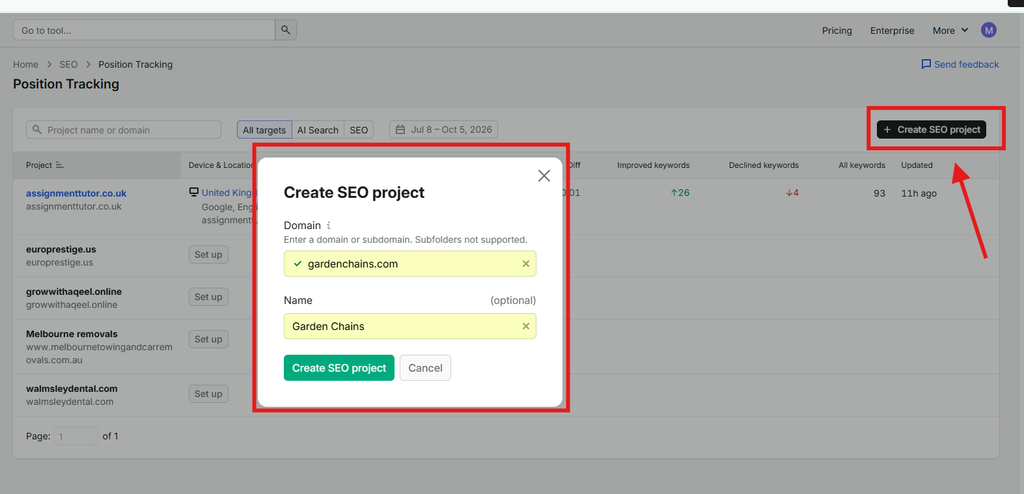
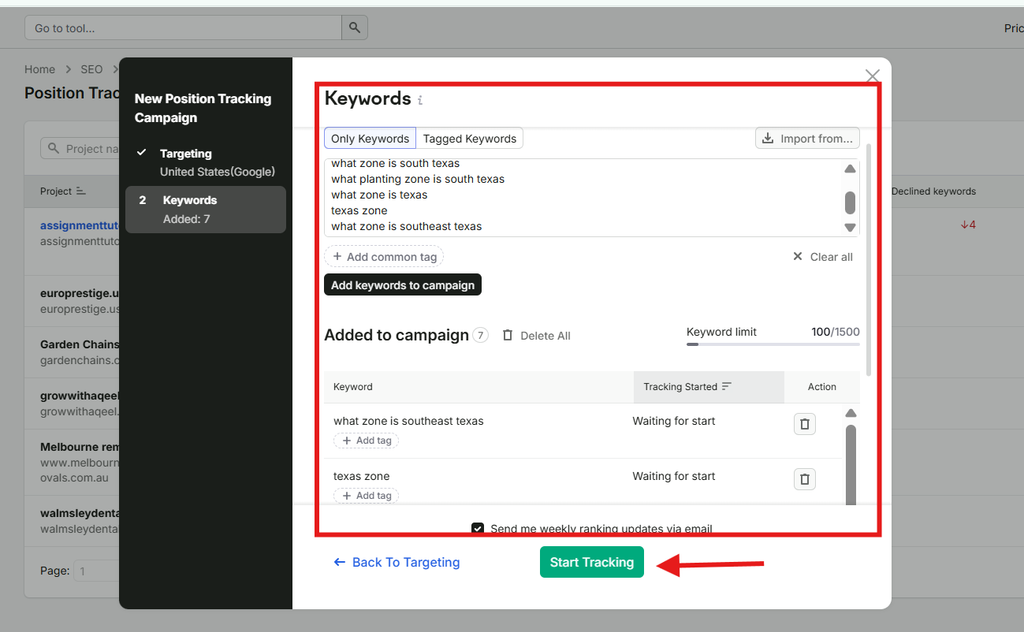
Set up Position Tracking for your domain
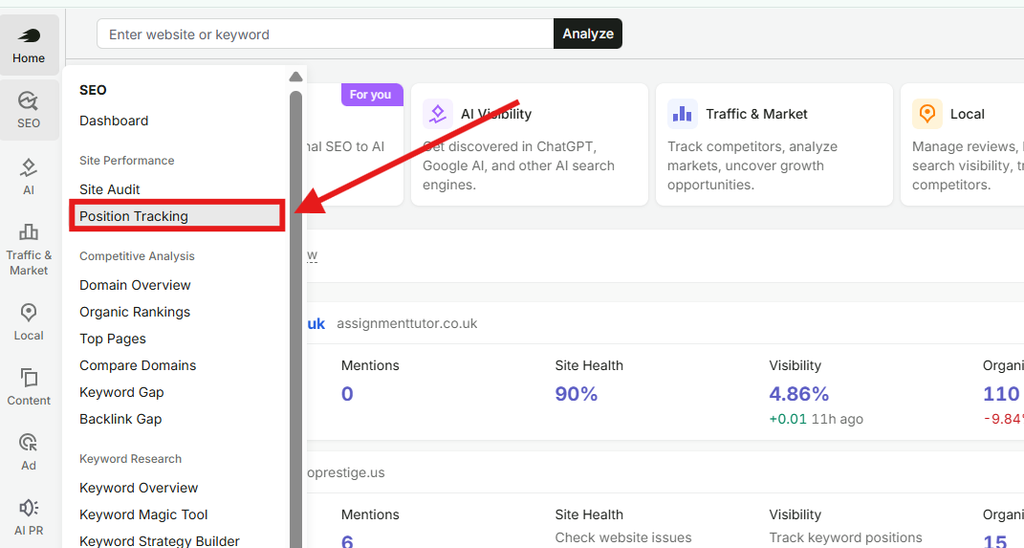
Create a Project and Add your domain and name
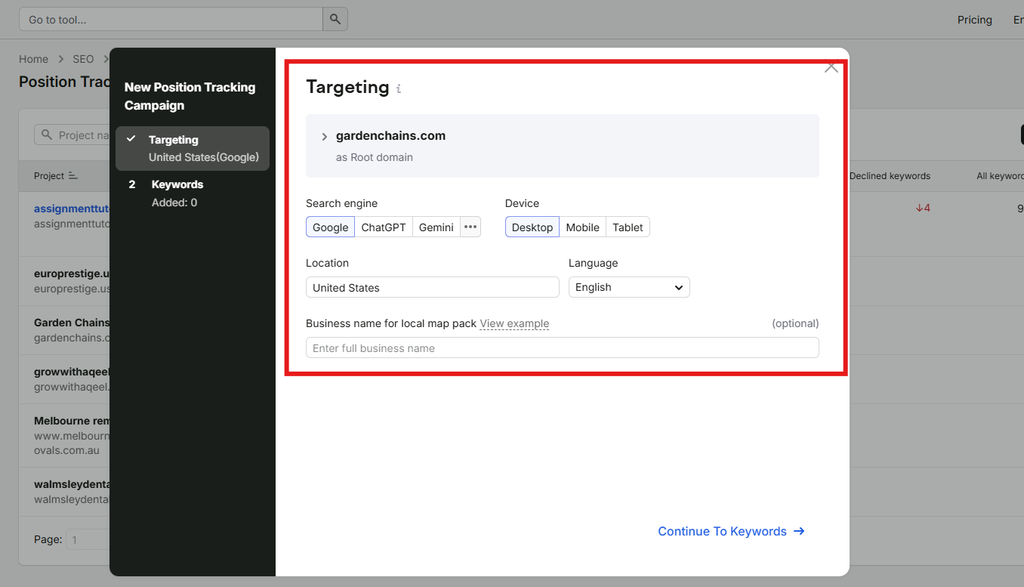
Add your search engine and location targeting
Also add keywords and press “Start tracking”
The health score shows how many of your tracked keywords have no competing pages. A score of 100% means no overlap at all. If a trend line breaks, Semrush calls that URL a ghost page. It means the page shows up for that keyword only sometimes.
Keep in mind that this report only covers the keywords you added. And don’t act yet. Take each pair back to Steps 2 to 4 to find the real reason.
Ahrefs: The “Multiple URLs Only” Toggle
Ahrefs doesn’t have a separate report for this. Open Site Explorer, enter your domain, and go to the Organic keywords report. Then turn on the “Multiple URLs only” toggle. Now you see only the keywords where more than one of your pages ranks.
Even Ahrefs says in its own guide that not every keyword on this list is a real problem. For them, it’s only a problem when it hurts your overall organic performance.
How to Track the Results After Your Fix
A tool won’t fix anything by itself, but it helps you track the result. Add the affected keywords to your rank tracker and make your fix.
Then watch both pages over the next few weeks. Google needs time to crawl and process the changes, so don’t judge after a few days. What does success look like? The right page goes up and stays there, and the other page stops taking its place. In Semrush, you can use the date filter to compare before and after.
How to Prevent Keyword Cannibalization Before You Publish
Fixing this problem takes time. Preventing it is much easier. Most overlap starts when you publish a new page without checking the pages you already have.
These four habits will keep your site clean:
- Use a keyword map: one main keyword and one intent for each page.
- Search your own site before you write. Update the old page if one exists.
- Link cluster pages to the pillar with clear anchor text.
- Give each page one job. Link to other pages instead of repeating them.
How to Avoid It on Location Pages
Location and template pages are the highest-risk group, because only the city name changes. So add something unique to each page, like real local data, local examples, and specific details.
Then link all of them back to one main hub page. This is exactly what fixed my Central Texas page.
How to Avoid It on SaaS Websites
SaaS sites often have a feature page, a use-case page, and a blog post that all target similar terms. The solution is to give each one a different intent.
Use the blog post for informational queries, the feature page for product queries, and the use-case page for a specific audience. Then link the blog post to the feature page, so they help each other instead of competing.
4 Common Mistakes That Make It Worse
Redirecting before finding the reason. A 301 removes a page from search for good. If the real problem was thin content, you just deleted a page you should have improved.
Looking only at impressions. A page can get impressions even when it ranks very low. Position tells you which page Google prefers, so always check both.
Reacting to one query. One strange result means nothing. Wait until you see the same page winning across several queries.
Trusting the tool alert as the final answer. A tool only tells you that two URLs rank for one keyword. It can’t read your pages or check your internal links. That part is your job.
FAQs
Can two pages rank for the same keyword without a problem?
Yes, if they serve different needs. Mueller gave a simple example in his answer. For a search about cheese, shops, recipes, and suggestions can all appear, and none of them are duplicates. It becomes a problem only when the wrong page wins or when two pages do the same job.
How can I check keyword cannibalization for free?
Use Google Search Console. Filter the Performance report by a query, open the Pages tab, and compare the position and impressions of each URL. You can also run a site: search in Google, but it only shows indexed pages.
Does Search Console show every page that competes for a query?
It shows only the pages Google actually displayed in your selected dates. By default, the report shows the last three months. So if a page seems to be missing, try a longer date range.
How long should I wait before I recheck?
There is no fixed time, because Google first has to crawl and process your changes. Check again over the next few weeks. You can also compare two date ranges in the Performance report to see before and after side by side.
Final Thoughts: Find the Reason First
Two pages ranking for one keyword is a signal, not a verdict. So don’t rush to delete or redirect anything. Most of the time, Google is just showing related pages from the same topic, and that’s healthy.
The real work is finding the reason. Start with the two quick checks. Then open Search Console, filter by query, and look at the Pages tab. Check which page ranks higher, compare the whole cluster, and read both pages side by side.
Once you know the reason, the fix becomes clear. A thin page needs more depth. A page with few internal links needs more links. An unfocused page needs a clear structure. Only real duplicates need a merge and a 301 redirect.
That’s what I did with my Central Texas page. I didn’t delete or redirect anything. I only improved the weaker page, and I left the stronger one alone.
So before your next audit, remember this. Many times, the answer is not “delete a page.” It’s “make the weaker page deserve its topic.”